A template is a starting design for a Widget type, such as the Zen or the Minimalist Pomodoro. In the editor, you can switch your widget to another template of its type, or import the design of another widget from its widget code. Both replace the layout and keep your inputs.
Switch template
The Template menu in the header shows the current template. Chart widgets have no Template menu.
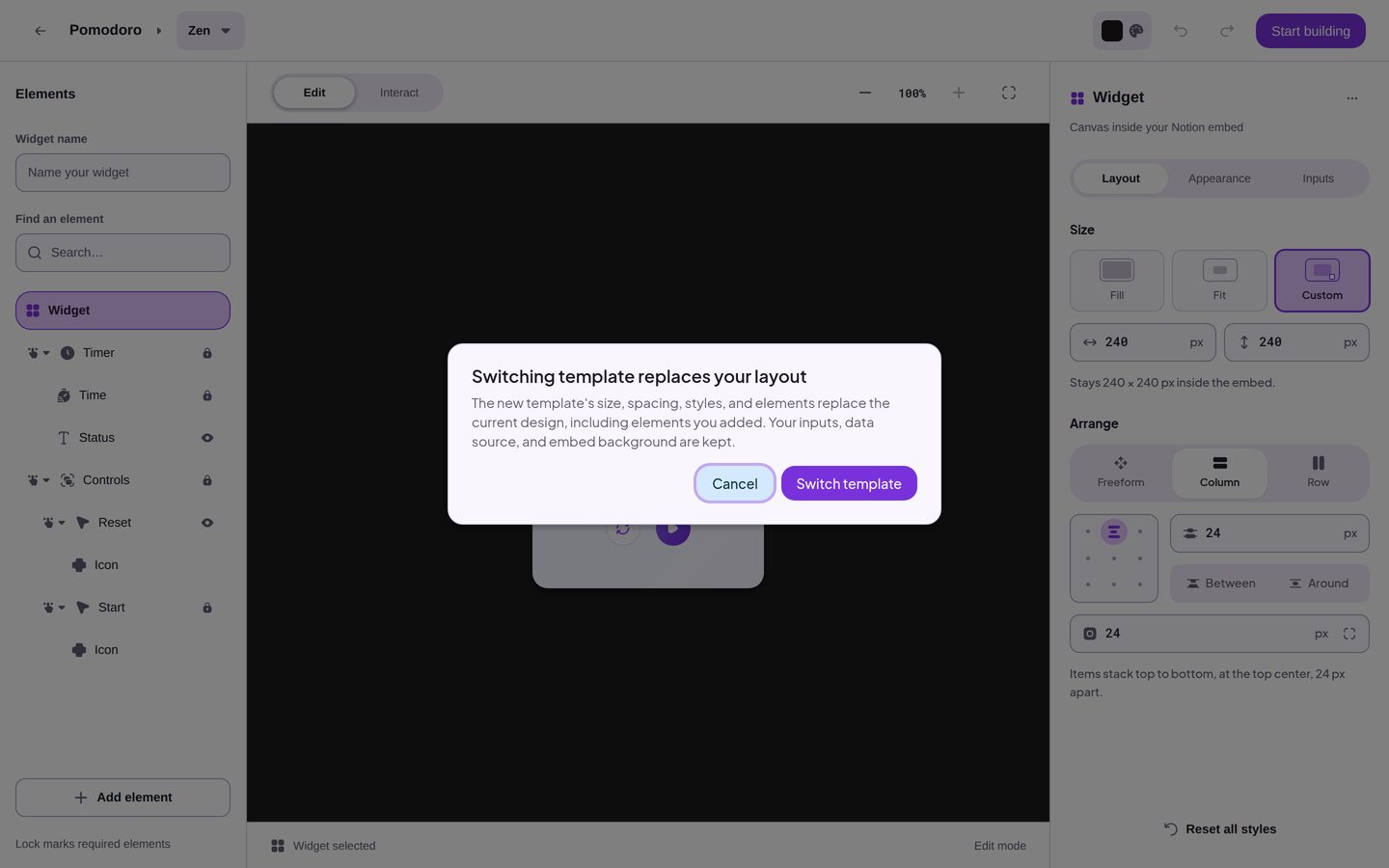
- Open the Template menu and pick another template. The dialog "Switching template replaces your layout" opens.
- Click Switch template to switch, or Cancel to keep the current design.
The switch replaces the layout with the layout of the new template: its size, spacing, styles, and Elements. This includes the Elements that you added. The switch keeps:
- the inputs, such as the Focus time of a Pomodoro
- the data source
- the Embed background
Press Ctrl+Z or Cmd+Z, or click Undo, to go back to the design from before the switch.
Import a widget code
A widget code copies the design of a widget. The Widget codes page explains where codes come from. Import code is in the header of the editor in your dashboard.
- Click Import code. The Import code dialog opens.
- Paste the code in Widget code.
- Click Import.
The code must be for the same Widget type as your widget. It can be for another template of that type. When the code does not exist or is for another Widget type, the dialog says "That code doesn't exist or is for another widget type." When the import fails for another reason, it says "Couldn't import code. Try again."
The import replaces your layout with the template and the appearance of the code. It keeps your inputs, your data source, and the name of your widget.
The editor saves your changes before the import, and then opens again with the imported design. Undo cannot bring back the design from before the import.
While Blocky refreshes Notion data, Import code is unavailable and says "Wait for the Notion data refresh to finish."
Set the Embed background
The Embed background is the color that fills the Notion block around your widget. It is not the same as the background of the widget itself:
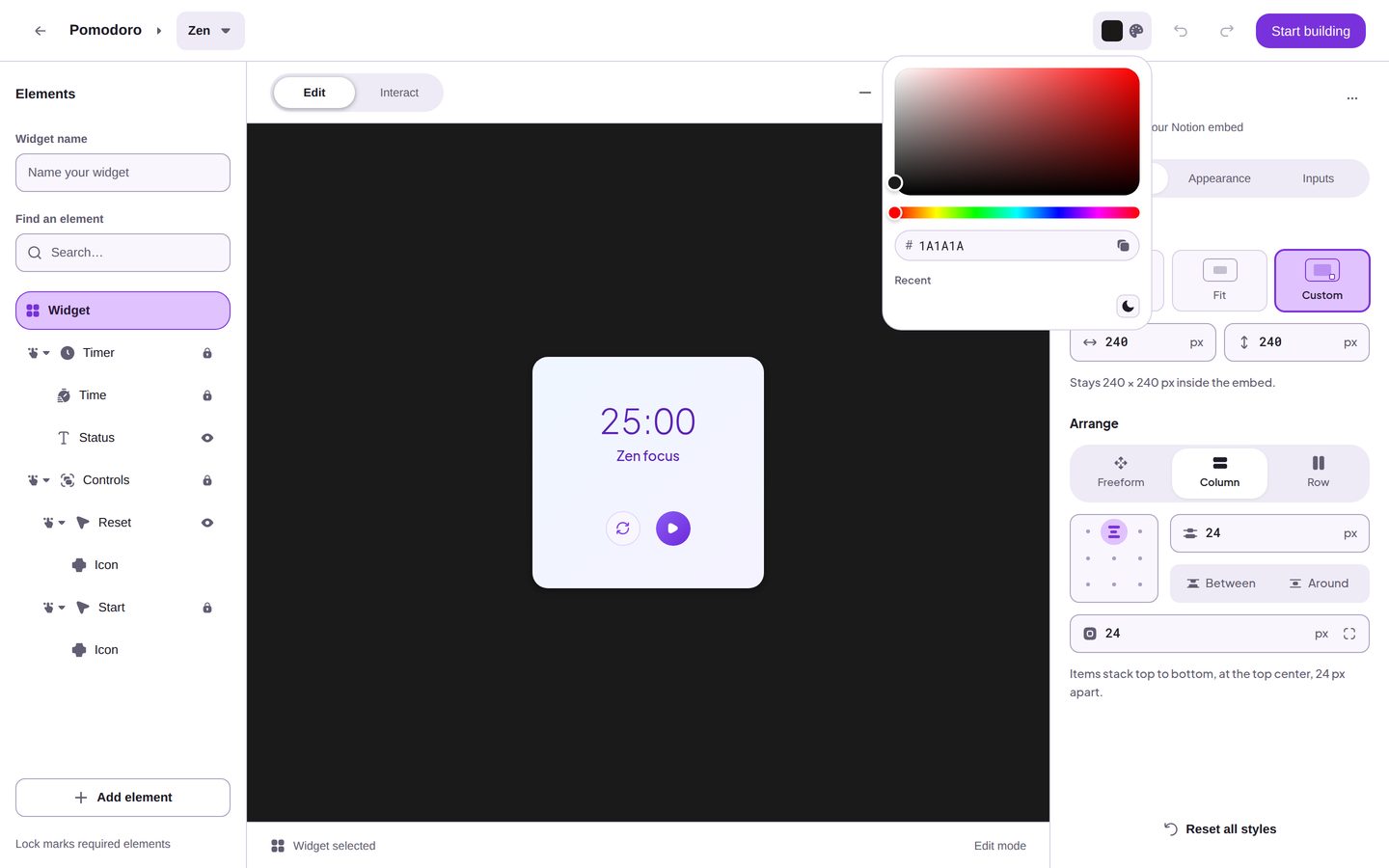
- Set the Embed background with the Embed background button in the header. The canvas of the editor shows it behind the widget.
- The widget's own background paints the widget. Set it in the Settings panel: select Widget, open Appearance, and use Background under Colors. The settings page explains this control.
To set the Embed background:
- Click Embed background in the header. On screens narrower than 1024 px, the button is in the Selection bar.
- Pick a color, or type its hex value. To match a Notion page, use the button at the bottom of the picker: Switch to Notion dark mode color sets #1A1A1A, and Switch to Notion light mode color sets #FFFFFF.
The Embed background has no transparency setting. Undo reverses each color that you pick.