
A widget is a set of Elements, such as headings, text, buttons, and Groups that arrange other Elements. The Elements panel lists them in the order that the widget shows them. It is the left panel of the editor. On screens narrower than 1024 px, Elements in the Selection bar opens it in a drawer, as the Editor tour explains.
The first row of the list is Widget, the widget itself. Under it, each Element has a row. Rows that are indented under an Element are its contents: the Elements inside a Group or a Card, and the Parts of the Element. A Part is a piece of an Element that you can select and style on its own, such as the time display of a Pomodoro timer.
Click a row to select the Element or the Part. The Settings panel then shows its settings.
Find an Element by name
Type in Find an element at the top of the panel. The list shows every Element and Part whose name contains the text you typed. For a Heading, a Text, a Badge, or a Button, the search also matches the start of its text. When nothing matches, the panel says so.
Add an Element
- To add the Element inside a Group or a Card, select that Group or Card first. Otherwise, the Element goes into the widget itself.
- Click Add element at the bottom of the panel. The Add element dialog opens. The line under its title names the place where the Element goes, such as Add to Controls.
- Find the Element in the list. You can search by name or description, or pick a tab: All, Basics, Layout, or the tab with the name of your Widget type, such as Pomodoro.
- Click the Element. Blocky adds it at the end of the Group, the Card, or the widget, and selects it.
When a Group or a Card is selected, the Settings panel also has a button to add an Element inside it, such as Add element inside Controls.
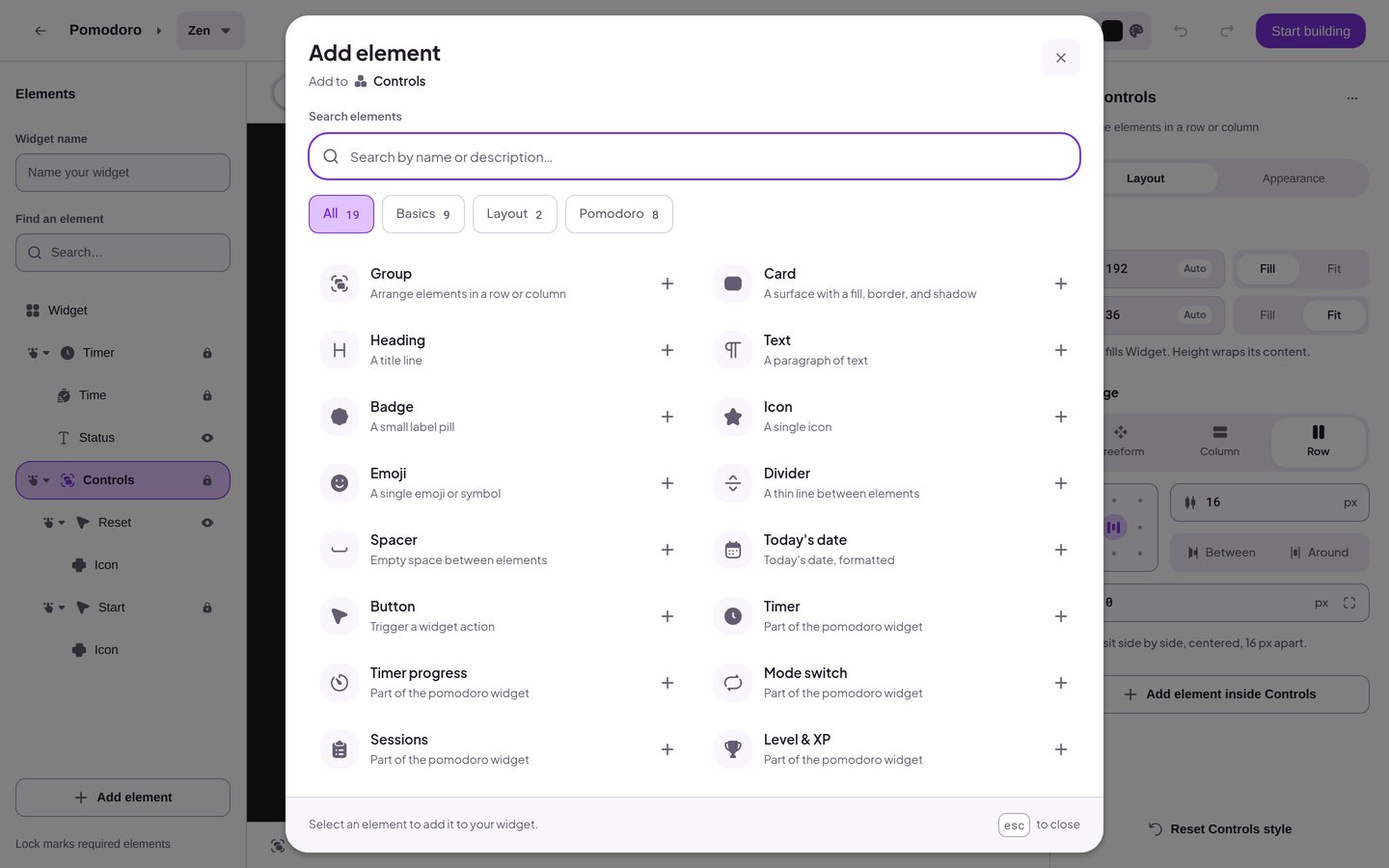
The list has these Elements for every Widget type:
| Element | What it is |
|---|---|
| Group | Arranges Elements in a row or a column. |
| Card | A surface with a fill, a border, and a shadow. It holds other Elements. |
| Heading | A title line. |
| Text | A paragraph of text. |
| Badge | A small label pill. |
| Icon | A single icon. |
| Emoji | A single emoji or symbol. |
| Divider | A thin line between Elements. |
| Spacer | Empty space between Elements. |
| Today's date | Today's date, formatted. |
| Button | Starts a widget action. It is in the list only for Widget types that have actions. |
The list also has the Parts of your Widget type, under the tab with the type's name. For example, a Pomodoro widget offers Timer, Timer progress, Mode switch, and Sessions, among others.
A widget can have only one chart. When the widget already has a chart, the list leaves out the chart Elements.
Reorder and nest Elements
Drag a row by its handle, at the left of the row, to move the Element:
- Drop it above or below another row to place it there.
- Drop it on the middle of a Group or a Card row to put it inside that Group or Card, at the end.
- Drop it under the last row to move it to the end of the widget.
Only a Group and a Card can hold other Elements. The rows of Parts and the Widget row have no handle, and you cannot drop an Element on a Part. Handles are hidden while you search, and the Elements drawer on narrow screens has no handles. To move an Element there, use Move up and Move down in the Element options menu.
Blocky refuses a move that would take away something the widget needs to work. In the Elements panel, no drop line appears and the Element stays where it was. When you drag on the canvas, the editor puts the Element back and shows "Required for this widget".
Hide and show an Element
Click the eye at the right of a row to hide the Element. The widget no longer shows it, and the row looks dimmed. Click the eye again to show the Element.
When you select a hidden Element, the Settings panel says "Show {name} to edit it again." with a Show button.
Some Parts can be hidden too. Their rows have an eye.
Required elements
A lock at the right of a row marks a Required element: the widget needs it to work. When you point at the lock, it says "Required for this widget". You can change the settings of a Required element and move it, but you cannot hide it or delete it.
The Element options menu
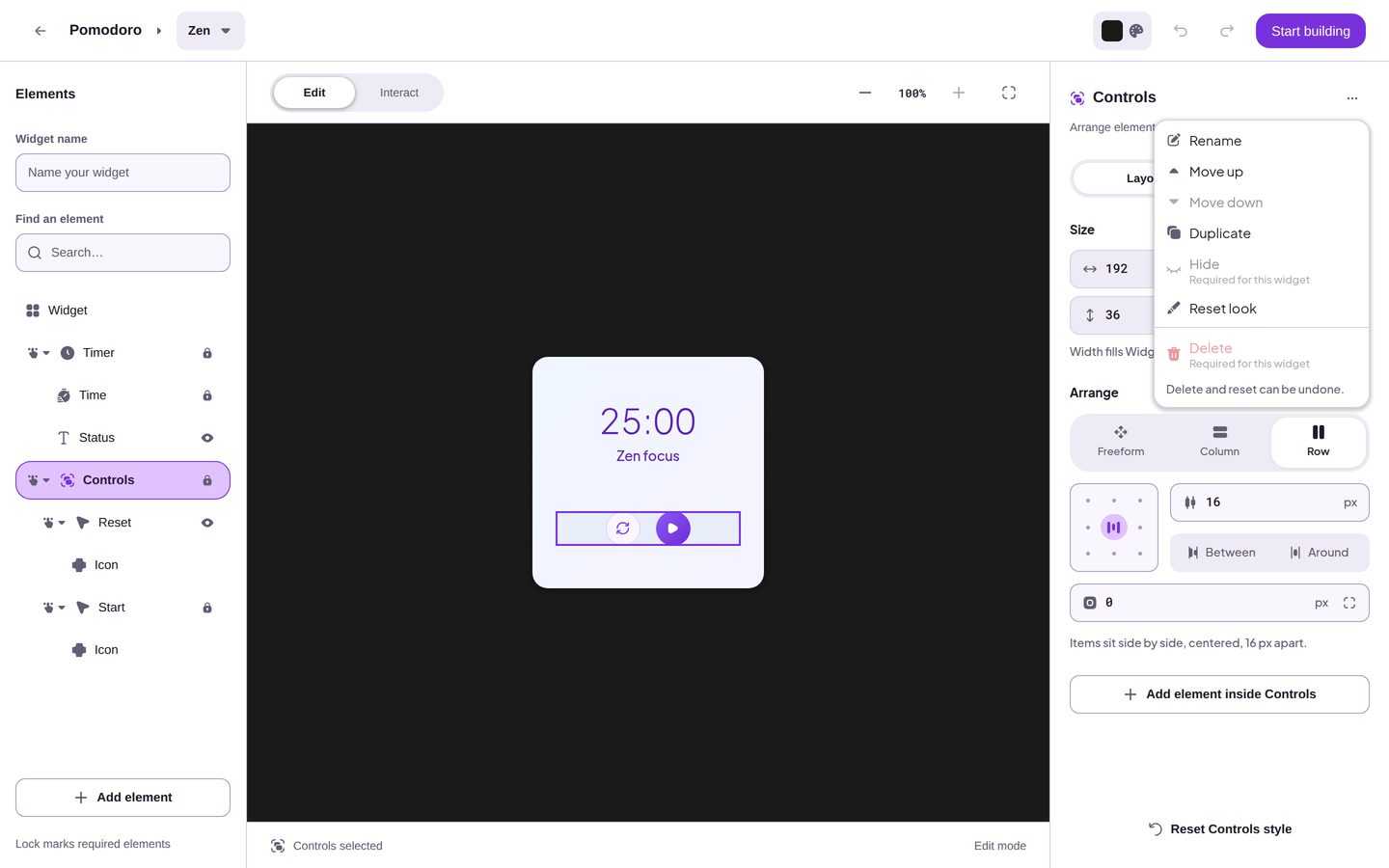
Select an Element, and then click Element options, the three dots at the top of the Settings panel. The menu has these items:
| Item | What it does | When it is unavailable |
|---|---|---|
| Rename | Gives a Group or a Card its own name, up to 32 characters. Press Enter to keep the name, or Escape to cancel. Clear the name to return to the default name. | The menu shows it only for a Group, a Card, and the few Parts that have a name of their own. |
| Move up | Moves the Element one place up among its neighbors. | The Element is first in its Group, Card, or widget. It is also unavailable for the widget and for a Part. |
| Move down | Moves the Element one place down. | The Element is last. It is also unavailable for the widget and for a Part. |
| Duplicate | Adds a copy of the Element right after it. | The Element is the chart, or holds the chart ("A widget can have only one chart"). It is also unavailable for the widget and for a Part. |
| Hide or Show | Hides a visible Element, or shows a hidden one. | Hide is unavailable for a Required element, for the widget, and for the chart ("The widget needs its chart"). Show is always available. |
| Reset look | Returns the look of the Element to its template values. An Element that you added returns to its default look. Its content stays. | Always available. |
| Delete | Removes the Element and everything inside it. | The Element is a Required element or the chart. It is also unavailable for the widget and for a Part. |
An unavailable item shows the reason under its name, such as "Required for this widget" or "Part of Timer". The menu ends with a reminder: "Delete and reset can be undone." Press Ctrl+Z or Cmd+Z, or click Undo, to reverse them.
Parts stay with their Element
A Part belongs to its Element. It moves, duplicates, and deletes only with that Element. For a Part, Move up, Move down, Duplicate, and Delete are unavailable with the note "Part of {Element}". Select the Element itself to move, copy, or delete it.
The series of a chart are an exception. You can reorder them with Move up and Move down, and the menu has no Duplicate or Delete item for them.