
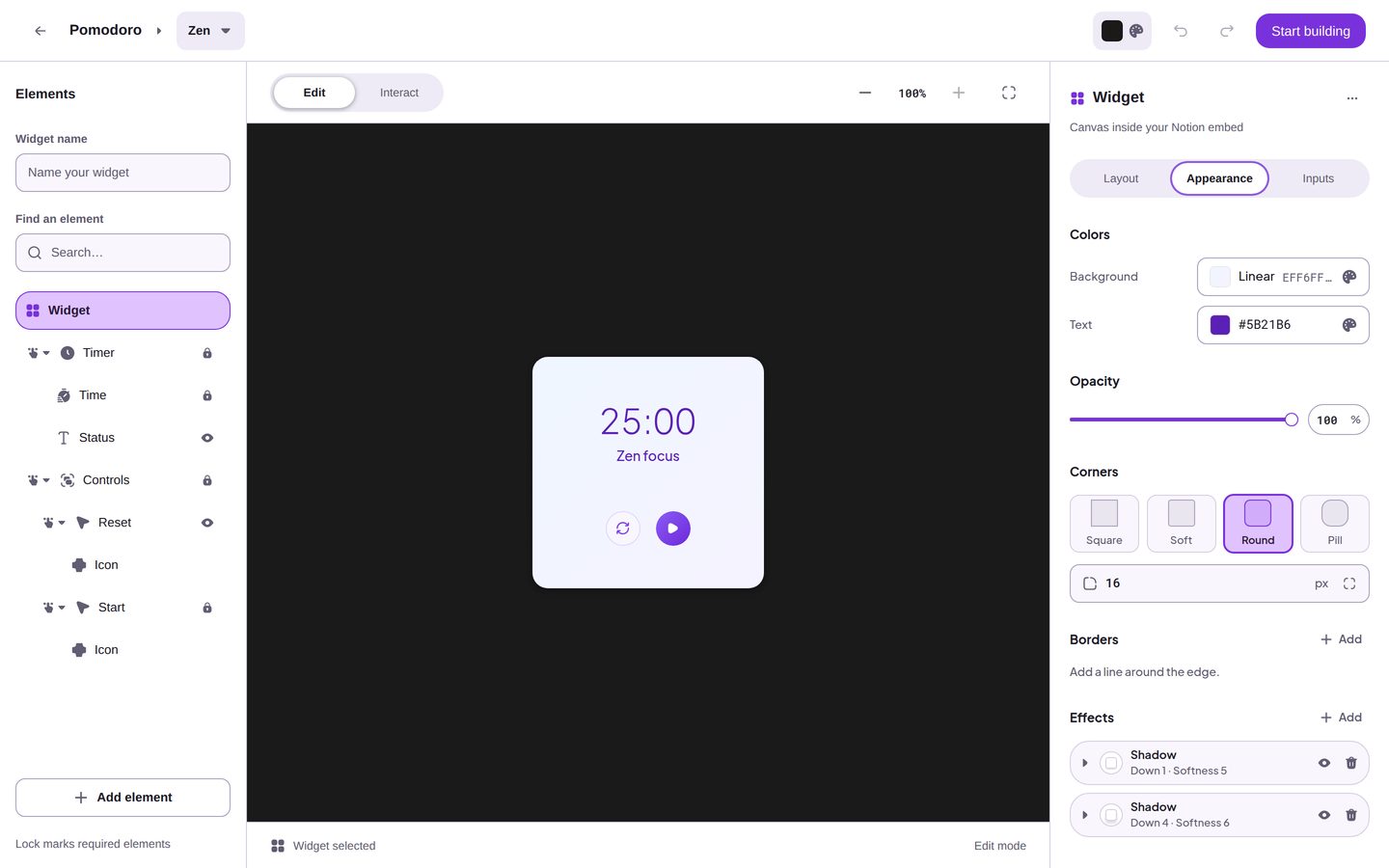
The Settings panel, on the right of the editor, shows the settings of what you select: the widget itself, an Element, or a Part. Select Widget at the top of the Elements panel to change the settings of the whole widget. On screens narrower than 1024 px, the edit button in the Selection bar opens the same settings in a drawer.
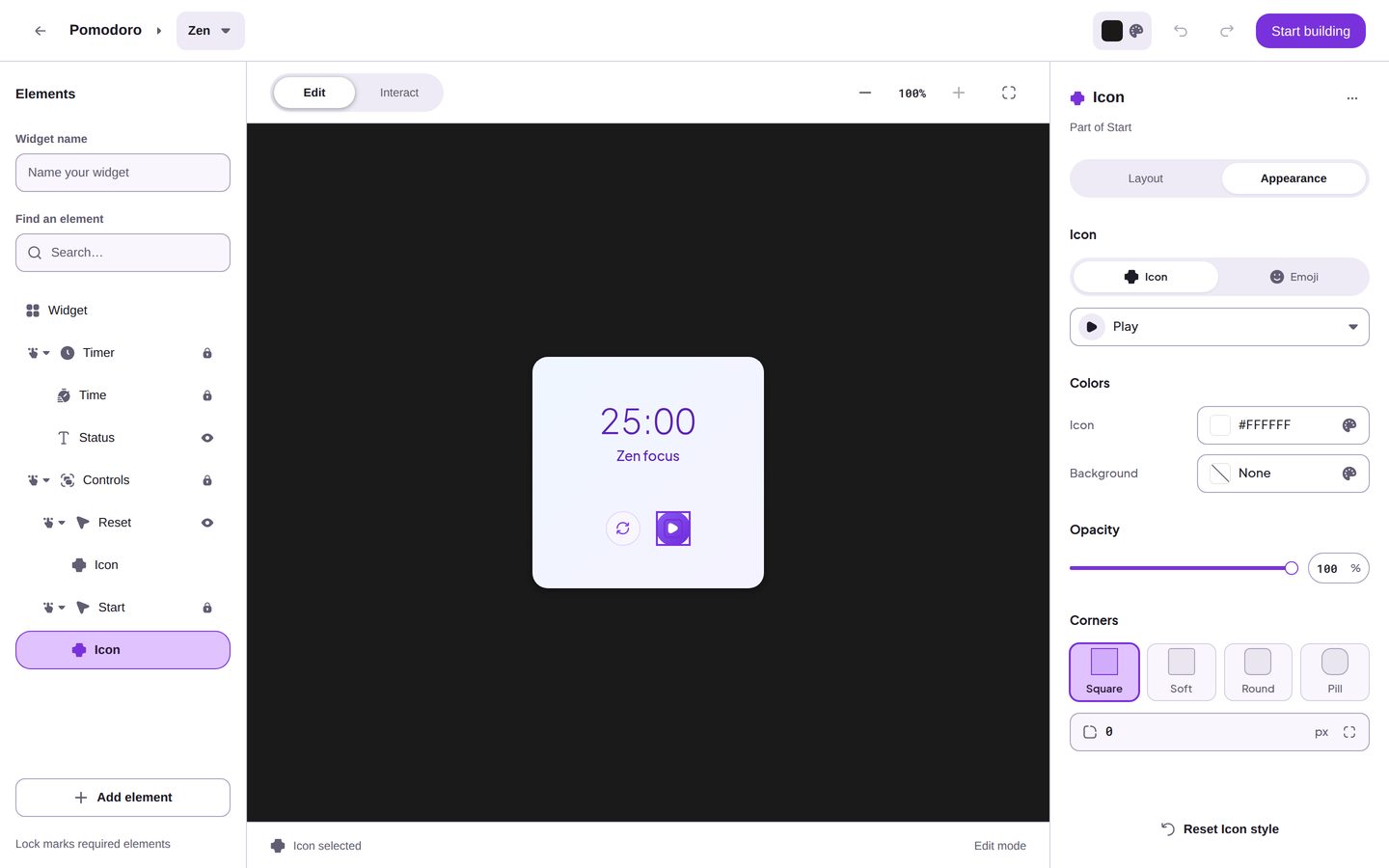
The top of the panel shows the name of the selection. Under the name of a Part, the panel says which Element it belongs to, such as "Part of Start".
The Layout, Appearance, and Inputs tabs
The settings are in three tabs. A tab appears only when the selection has settings for it.
- Layout sets the size and the arrangement: Size, Edge space, and Arrange.
- Appearance sets the look. For an Element, it starts with the settings of that kind of Element, such as what a Button shows. Then come the shared controls: Colors, Opacity, Corners, Borders, Effects, and Font.
- Inputs holds the values that the widget works with, such as the Focus time of a Pomodoro. For quotes and flashcards, it also holds the Data source, where you choose Written here for data that you enter in the editor or From Notion for data from a Notion database. A chart also has a Data source, but it reads data only from Notion and has no Written here choice. Until Refresh data loads your Notion data, the chart shows sample data. Connect Notion data to widgets explains the Notion steps. Only the widget has this tab, and only when its Widget type has inputs.
Shared controls
Many Elements share the same controls. Each one works the same way wherever it appears.
Size
For the widget, Size has three choices:
- Fill stretches the widget to the edges of the embed in Notion.
- Fit shrinks the widget to wrap its content.
- Custom sets a width and a height in px. The smallest widget is 160 px wide and 160 px high.
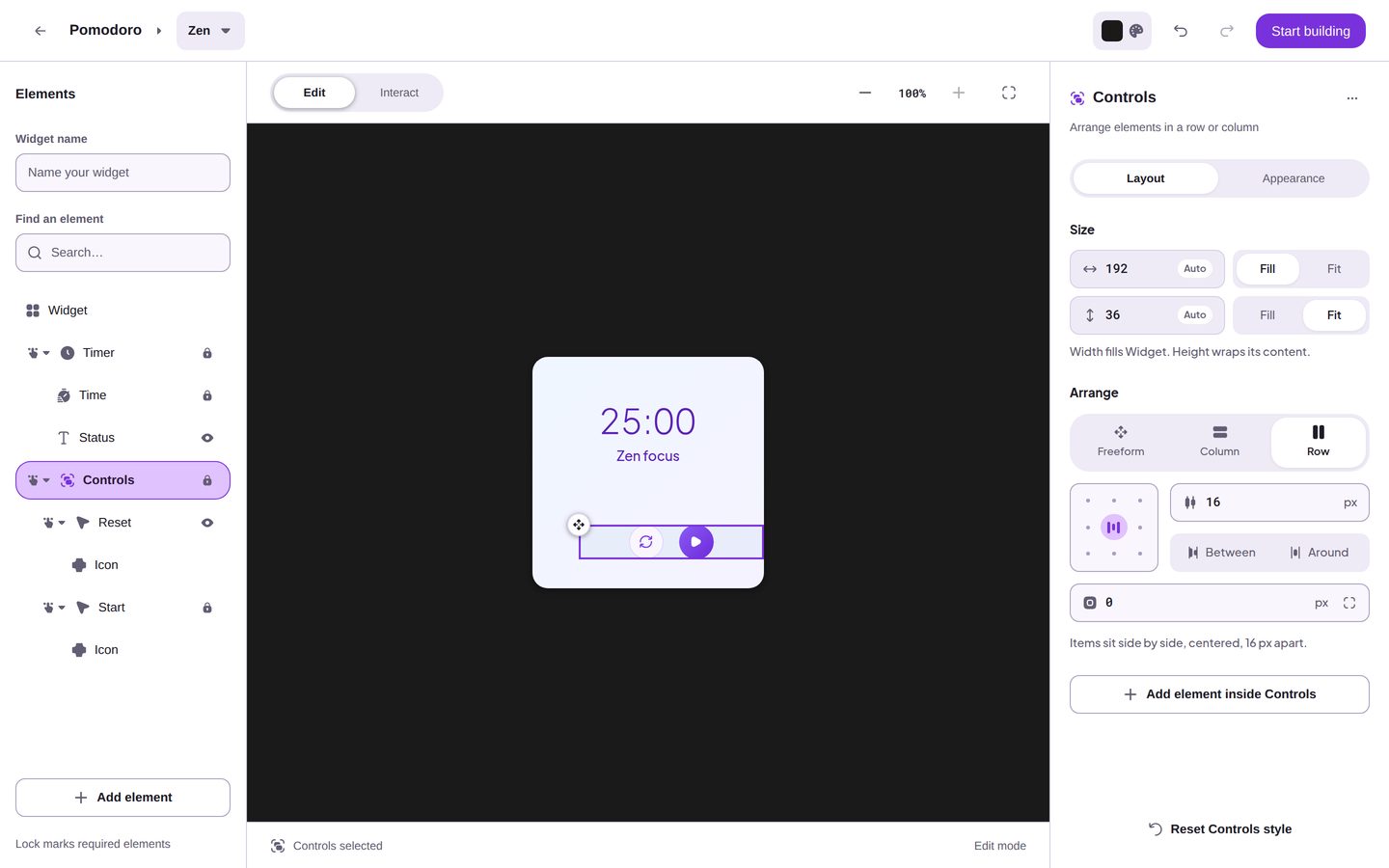
For an Element, you set the width and the height one at a time. Type a number from 1 to 1440 px, or choose Fill to fill the space of its Group, Card, or widget, or Fit to wrap its content. When the Arrange of the selected Element itself is Freeform, Fit is unavailable, because "Freeform needs a set size". The arrangement of the Group, Card, or widget around it does not matter.
Edge space
Edge space sets the space between the border of the embed and your widget. It appears for the widget when its Size is Fill. You can set one value for all four sides, or a different value for each side.
Arrange
Arrange sets how a Group, a Card, or the widget places the Elements inside it:
- Column stacks them from top to bottom.
- Row places them side by side.
- Freeform lets each Element keep its own position, which you set by dragging on the canvas.
For Column and Row, the grid of nine dots sets the alignment. The number next to it sets the gap between Elements, from 0 to 999 px. Between spreads the Elements to both ends, and Around spaces them evenly. The last field sets the padding inside the edges. A sentence under the controls describes the result, such as "Items stack top to bottom, at the top center, 24 px apart."
Background and Text
Colors holds the colors of the selection. Background can be No fill, Solid, or Gradient. A gradient is Linear or Radial. Text sets the text color. Some Elements name their colors after what they paint, such as Icon.
Opacity
Opacity sets how see-through the selection is, from 0% to 100%.
Corners
Corners rounds the corners. Pick Square, Soft, Round, or Pill, or type a size from 0 to 999 px. To give each corner its own size, turn on Set each corner, the button at the right of the size field.
Borders
Borders draws lines around the edge. Click Add to add a border. An Element can have up to 4 borders. For each border, set its color, its position (Inside, Center, or Outside), its thickness from 1 to 16 px, and its style (Solid or Dashed).
Effects
Effects adds up to 8 effects. Click Add and pick one:
- Shadow lifts the selection off the page.
- Inner shadow presses it into the page.
- Blur softens the whole layer.
- Blur behind frosts whatever sits behind it.
Font
Font sets the font family, the weight, and the style. On an Element, the Widget font choice uses the font of the widget, so a change to the widget font also changes the Element.
Place Elements freely with Freeform
- Select the Group, the Card, or the widget that holds the Elements.
- In Layout, under Arrange, choose Freeform. Freeform needs a set size, so if the width or the height of that Group, Card, or widget is set to Fit, it becomes a fixed size in px. One Undo reverses both changes.
- Select an Element inside it. A move handle appears at the top-left corner of the Element on the canvas.
- Drag the move handle to place the Element. To cancel a drag, press Escape before you release the mouse button. The Element returns to where it was.
Each finished drag is one step that Undo reverses.
Give one Part its own look with a Part override
Some settings of a Part are shared with its Element or with other Parts. A Part override gives one Part its own value for such a setting. Without an override, the Part shows the shared value.
For example, the Icon Part and the Label Part of a Button both show the shared color of the Button. To give the label its own color, select the Label Part and open Appearance. Under Colors, Text shows Automatic while the Part uses the shared color. Pick a color to set the override. The Icon Part keeps the shared color.
A Part can also have its own Size, Opacity, Corners, Borders, and Effects, when its Layout and Appearance tabs show these controls. A change to them on the Part does not change its Element.
Reset styles
Three resets return a look to its template. They keep the content, the inputs, the data source, the Elements, and the Embed background.
- Reset look, in the Element options menu, resets the look of the selected Element or Part. An Element that you added returns to its default look. For a Part, only the settings that belong to that Part change.
- Reset {name} style, at the bottom of the Settings panel, does the same as Reset look for the selection. The button names the selection, such as Reset Controls style.
- Reset all styles, at the bottom of the Settings panel when the widget is selected, resets the look of the widget, every Element, and every Part at once.
Undo reverses each reset.