
Blocky opens the widget editor when you create a widget or edit one from the dashboard. The editor shows your widget in the middle, the Elements panel on the left, and the Settings panel on the right. This page explains each part of the screen. It describes screens 1024 px wide or wider first, and then the layout on narrower screens.
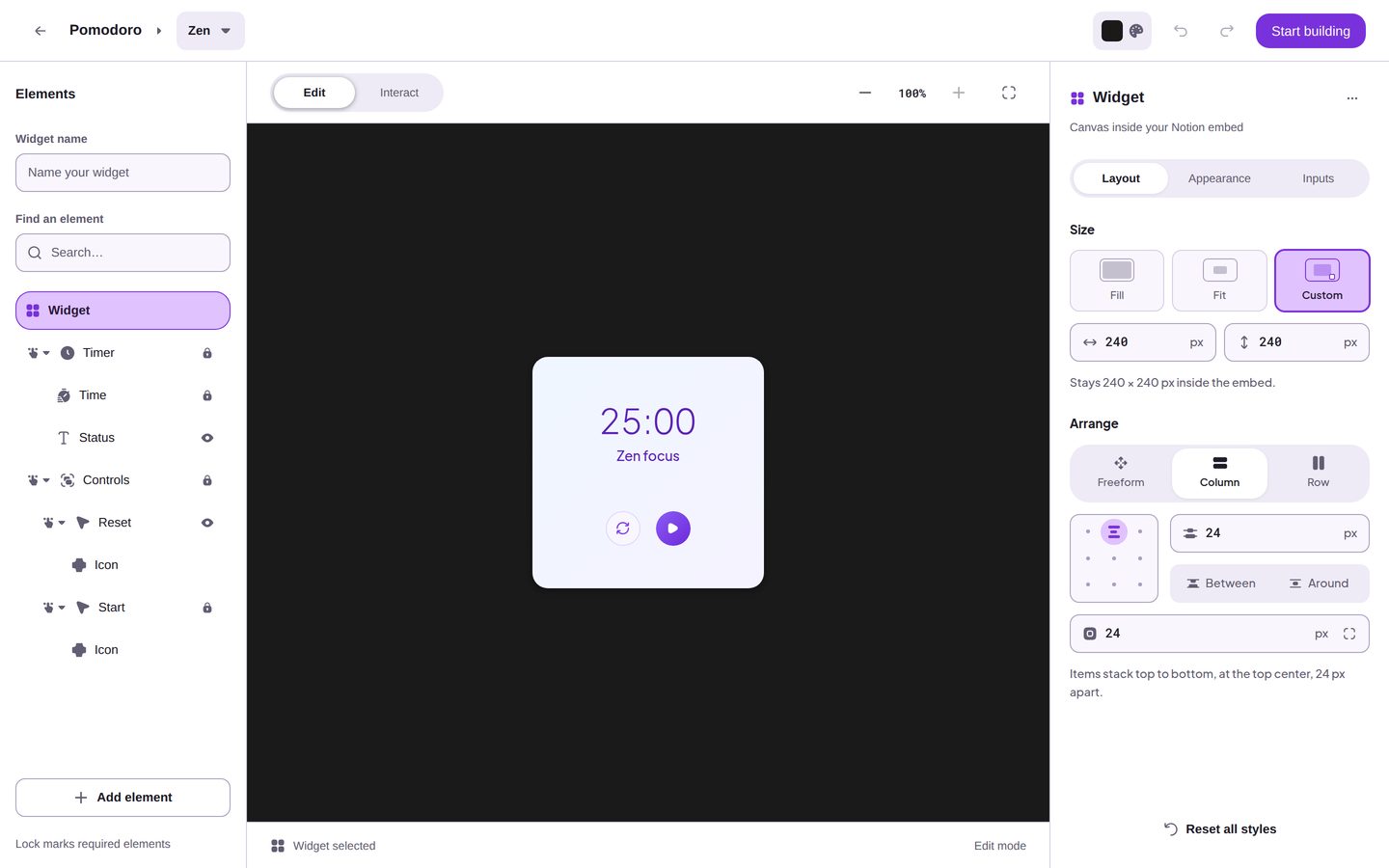
The screenshots on these pages come from the public template preview on the Blocky site. The preview shows Start building where your editor shows Save, and it has no Import code button.
The header
The header runs across the top of the editor. From left to right, it holds these controls:
- The back arrow, Back to templates, returns you to the dashboard. As it leaves, the editor sends your last changes to the Editor draft, so you can resume the draft later. It doesn't wait for that save, so fix any save error first. Save and publish a widget explains when changes can be lost.
- The name of the Widget type, such as Pomodoro.
- The Template menu shows the current template. Pick another template to replace the layout of your widget. Chart widgets show the type name only and have no Template menu.
- The Embed background button shows the color that fills the Notion block around your widget. Click it to pick another color.
- Import code replaces the layout of your widget with the layout from a widget code.
- Undo and Redo step back and forward through your changes.
- Save publishes the widget and returns you to the dashboard.
The canvas
The canvas in the middle of the editor shows your widget on its Embed background. Click an Element on the canvas to select it. The Settings panel then shows the settings of that Element. You can also select an Element in the Elements panel.
The bar under the canvas names the current selection, such as "Widget selected", and the current mode.
Edit and Interact modes
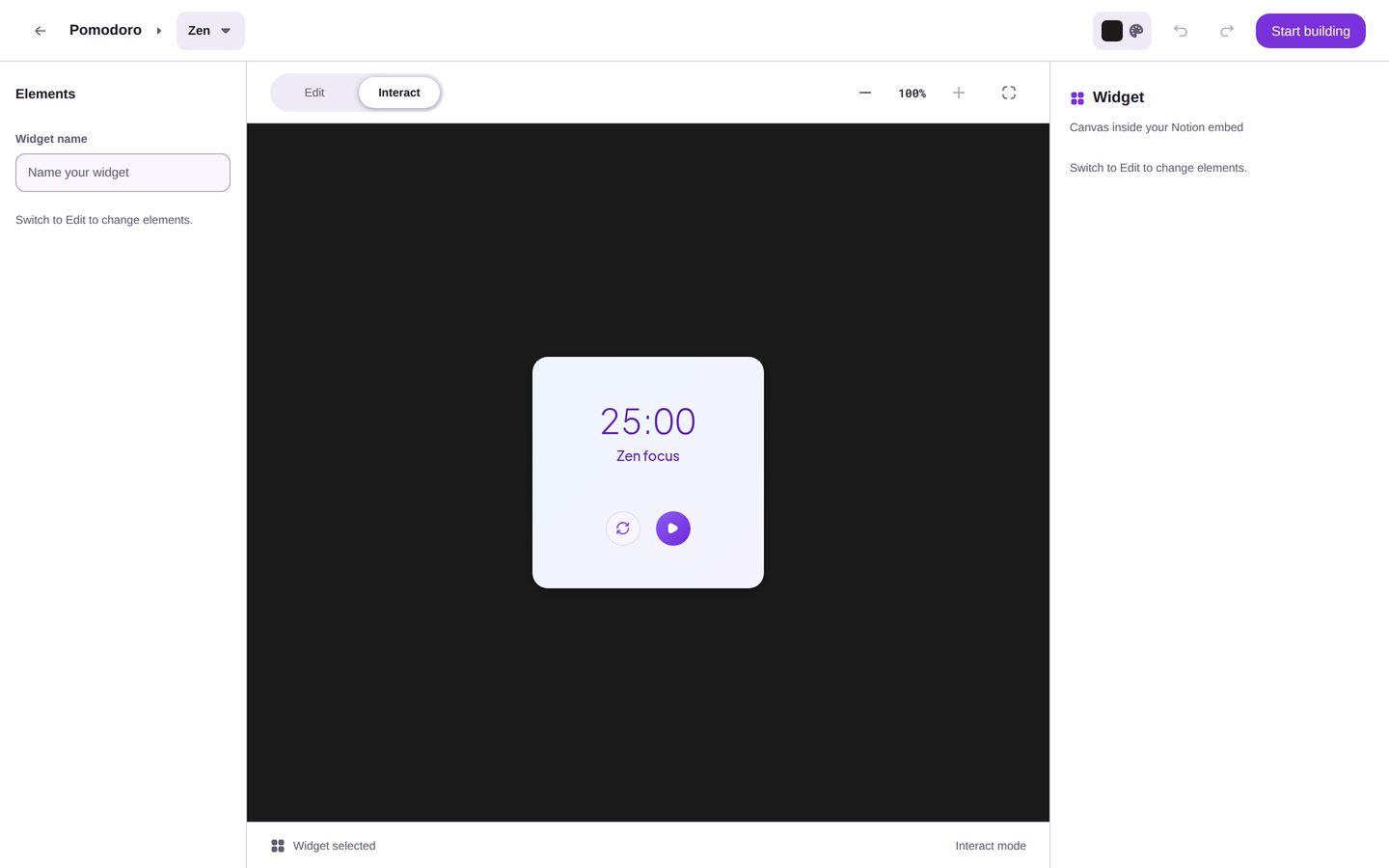
The Edit and Interact switch sits above the canvas. The editor opens in Edit mode.
- In Edit mode, you select Elements and change them.
- In Interact mode, the widget runs, so you can try its controls, such as the start button of a timer. You cannot select or change Elements. The Elements panel and the Settings panel show "Switch to Edit to change elements."
Zoom and Fit
The zoom controls sit at the right end of the bar above the canvas.
- Zoom out and Zoom in step between 50%, 75%, and 100%. The current zoom shows between the two buttons.
- Fit to canvas sizes the view so that the whole widget fits in the canvas, with a margin around it. Fit never zooms in past 100%.
The editor opens with the view fitted to the widget.
Undo and Redo
Use the Undo and Redo buttons in the header, or these keyboard shortcuts:
| Action | Windows and Linux | Mac |
|---|---|---|
| Undo | Ctrl+Z | Cmd+Z |
| Redo | Ctrl+Shift+Z or Ctrl+Y | Cmd+Shift+Z or Cmd+Y |
When the cursor is in a text field, these shortcuts undo and redo the typing in that field, not the changes to the widget.
Delete an Element with the keyboard
Select an Element and press Delete or Backspace to remove it. Press Ctrl+Z or Cmd+Z to bring it back.
The keys do nothing in these cases:
- The widget itself is selected.
- The selected Element is a Required element. A lock marks it in the Elements panel.
- A Part of an Element is selected. A Part goes only with its Element.
- The cursor is in a text field, or a dialog or a menu is open.
- The editor is in Interact mode.
The editor on screens narrower than 1024 px
When the editor window is narrower than 1024 px, the editor puts the panels in drawers at the bottom of the screen:
- The header keeps the back arrow, the Template menu, Import code, and Save.
- Undo and Redo move to the toolbar above the canvas, next to the Edit and Interact switch.
- The zoom controls sit under the canvas. The fit button there is named Fit.
- The Selection bar stays docked at the bottom of the screen. It shows the name and the size of the selected item.
- Elements in the Selection bar opens the Elements panel in a bottom drawer. Add element is at the bottom of that drawer.
- The edit button in the Selection bar, such as Edit widget, opens the settings of the selected item in a drawer.
- The Embed background button also moves to the Selection bar.
The keyboard shortcuts, the modes, and zoom work the same way on narrow screens.