Reading highlights
Connect your book highlights database and pick its Highlight and Author properties. Press New Quote to revisit a line you saved.
How it’s set up
- Source
- From Notion
- Quote
- Highlight
- Author
- Author
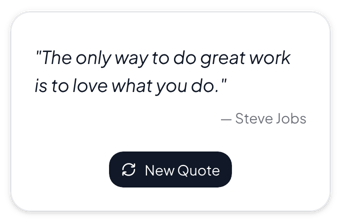
A white card with dark text, a gray author line and a black New Quote button. Press New Quote and the next quote takes its place.
Each example puts the widget on a Notion page and lists the settings it uses.
Connect your book highlights database and pick its Highlight and Author properties. Press New Quote to revisit a line you saved.
Write your prompts as quotes and turn Show author off. With Shuffle on, each load shows them in a new order.
Add a quote from each client, with their name and business as the author. Curly quote marks suit a portfolio page.
The same quotes widget with a different look. Each variant has its own page.
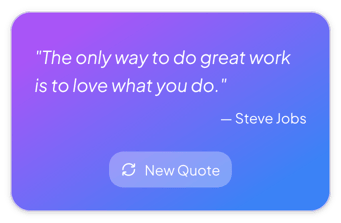
Goal pages and mood boards where the quote also adds color
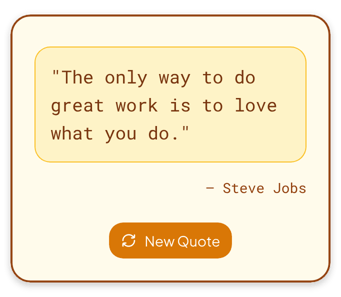
Journals, notebooks and pages with a warm cream and brown look
Goal pages, training plans and morning pages that need a motivating line
Start from the Normal variant and change any part of it. Try it in your browser first, no account needed.