Vision board
List the lines that keep your goals in view and set Quote marks to Curly. The gradient card adds color to the board.
How it’s set up
- Source
- Written here
- Shuffle
- On
- Quote marks
- Curly
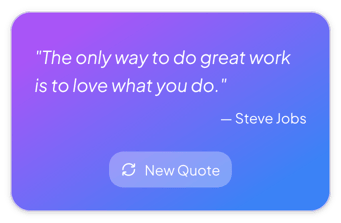
A purple-to-blue gradient card with white text and a semi-transparent New Quote button. Press New Quote to show the next quote.
Each example puts the widget on a Notion page and lists the settings it uses.
List the lines that keep your goals in view and set Quote marks to Curly. The gradient card adds color to the board.
Add each reading you are considering, with its author. Go through them together and press New Quote to move to the next one.
Connect your episode database and pick the Best line and Guest properties. Press New Quote to look back at what each guest said.
The same quotes widget with a different look. Each variant has its own page.
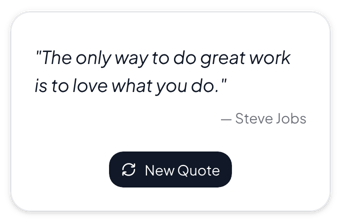
Dashboards, journals and study pages where the quote should be easy to read
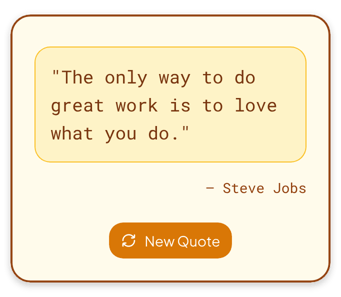
Journals, notebooks and pages with a warm cream and brown look
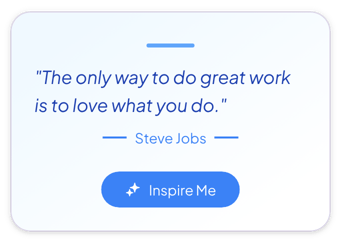
Goal pages, training plans and morning pages that need a motivating line
Start from the Gradient variant and change any part of it. Try it in your browser first, no account needed.