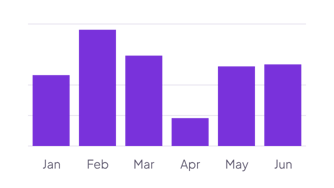
Pages read by genre
Log each book with a Genre and a Pages property. Set Shorten to 0 so genres like Science fiction show in full.
How it’s set up
- Labels from
- Genre
- Values from
- Pages
- Shorten to
- 0
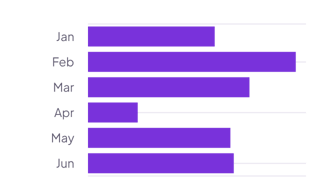
Bars run from left to right, with the labels down the side, which leaves room for long names. With several series, each bar stacks them. Hover over a bar to see its value.
Each example puts the widget on a Notion page and lists the settings it uses.
Log each book with a Genre and a Pages property. Set Shorten to 0 so genres like Science fiction show in full.
Leave Values from empty to count the open tasks for each person. The longest bar shows who needs help first.
Add one row per subject with your current grade. Turn on value labels to show each grade at the end of its bar.
The same bar chart widget with a different look. Each variant has its own page.
Project boards and dashboards that compare a few totals
Start from the Horizontal variant and change any part of it. Try it in your browser first, no account needed.