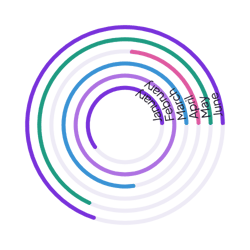
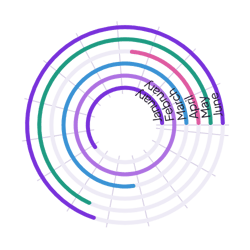
You can create a radial chart in Notion that shows each label in your Notion database as a ring around one center. The larger the value, the longer the ring, so you can compare a few totals in a small space.
Notion data
Chart types take Notion data. A radial chart reads one Notion database. Its Label Field groups your Notion rows into the labels of the chart. Its Value Fields are the number properties that set the values. When you leave Value Fields empty, the chart counts how many rows share each label. If a property does not appear in the list of values, check that it is a Notion number property.
Create a radial chart and embed it in Notion
If the create dialog shows No Notion datasources found, click Sign in with Notion to connect Notion, and then start again at step 1.
- In the Blocky dashboard, click Create widget.
- Under Category, choose Chart.
- Under Widget type, choose Radical. This is the radial chart.
- Under Style, choose a template, such as Normal. Then click Continue to data.
- In Notion Datasource, choose your Notion database.
- In Label Field, choose the property that groups your rows into labels.
- In Value Fields, choose one or more number properties, or leave it empty to count rows.
- Click Open editor.
- Change the text, colors, and settings of the chart in the editor.
- Click Save. Blocky publishes the chart and opens the dashboard.
- On the card of the chart, click Copy.
- In Copy embed link, copy the link on the Public tab. Anyone who has a Private link can use it, so use a private link only on pages that you control.
- In Notion, open the page for the chart. Type
/embed, choose Embed, and paste the link.
- Confirm the embed. If the chart needs more space, resize the embed block.
Templates
The create dialog lists the templates of the radial chart under Style:
- Normal (Normal radial chart). Colored rings with rounded ends on a faint track, each labeled at its start, with nothing behind them.
- Grid (Grid radial chart). The same rings over a guide of thin circles and lines, like a target, which makes ring lengths easier to compare.
Inputs
In the editor, select Widget in the Elements panel, and then open the Inputs tab. Its Source section sets the Notion data of the chart:
- Notion database is the database that the chart reads.
- Labels from is the property that groups your rows into labels.
- Values from takes up to 12 number properties. Leave it empty to count rows.
- Refresh data applies your picks and loads their data.
To change the look of the chart, select the chart in the Elements panel, and then open the Appearance tab. It has settings such as Series, Ring colors, Rings, Ring labels, Center text, Legend, and Hover card. With two or more series, the rings use the series colors instead of Ring colors.