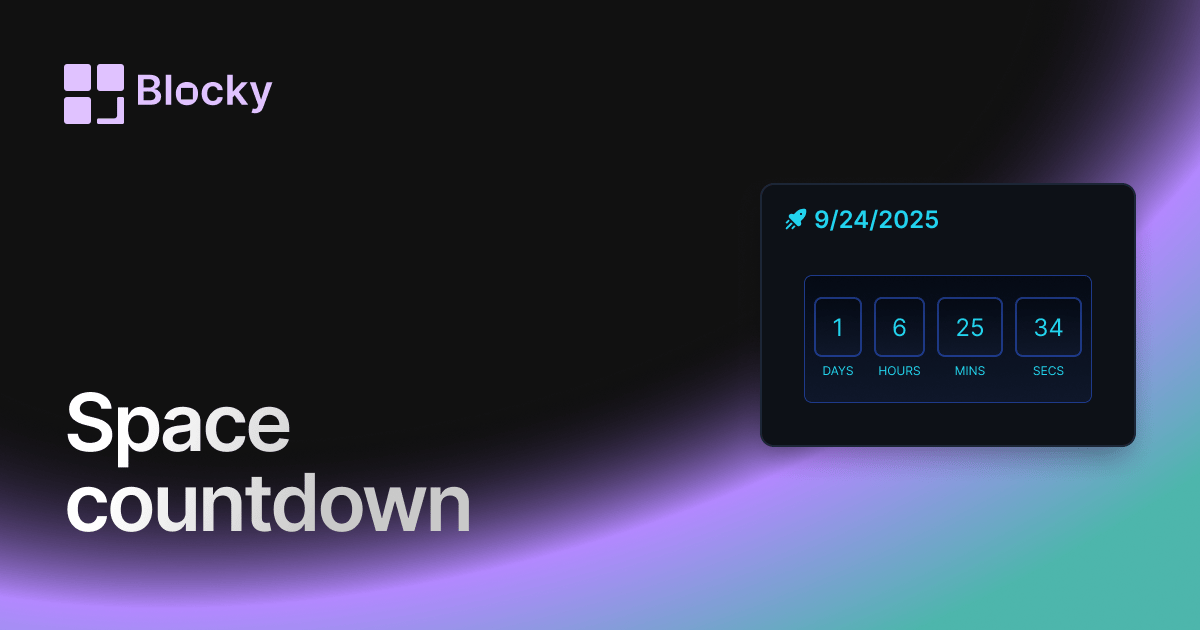
How do I add a countdown timer in Notion?

How to add a countdown timer in Notion

Learn how to add a countdown timer in Notion with Blocky for launches, deadlines, events, and dashboard reminders.

01Guide

Create countdown timers in Notion with Blocky.

These notes target the common Google question and explain the no-code Blocky flow before you choose a variant.

How to add a countdown timer in Notion with Blocky

Blocky makes it simple to add a countdown timer in Notion for deadlines, launches, birthdays, holidays, and project milestones. Choose the Countdown widget, set the target date and time, and preview the timer before publishing.

The editor lets you adjust labels, units, colors, backgrounds, spacing, and the visual countdown style. After the preview is ready, copy the embed URL and paste it into a Notion embed block.

Countdown timer variants

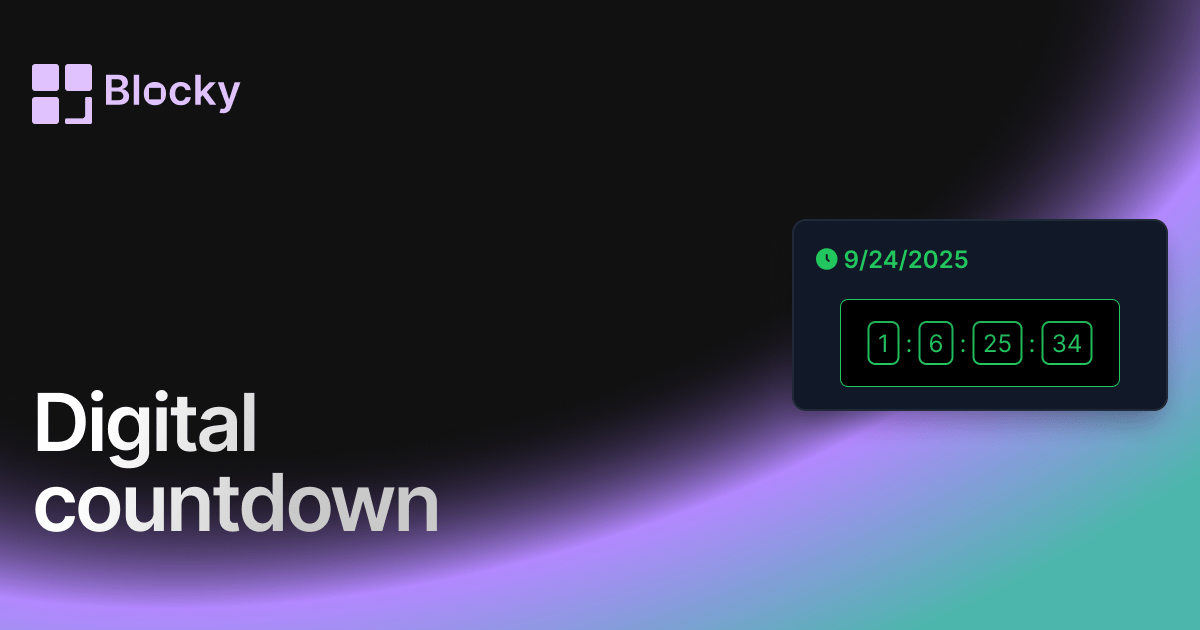
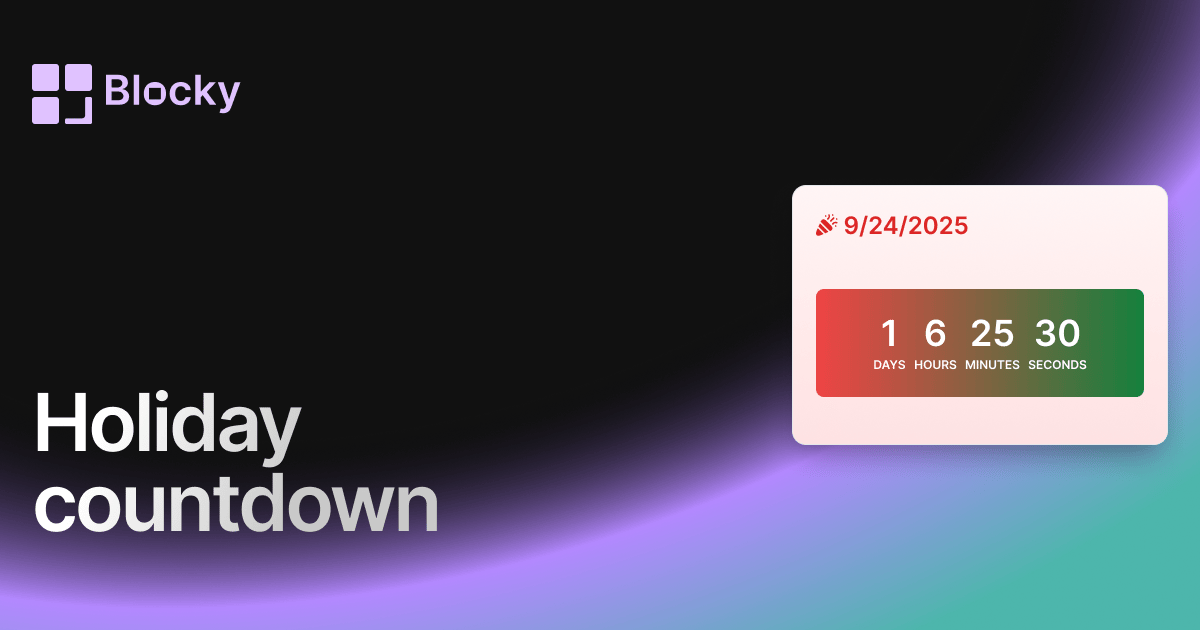
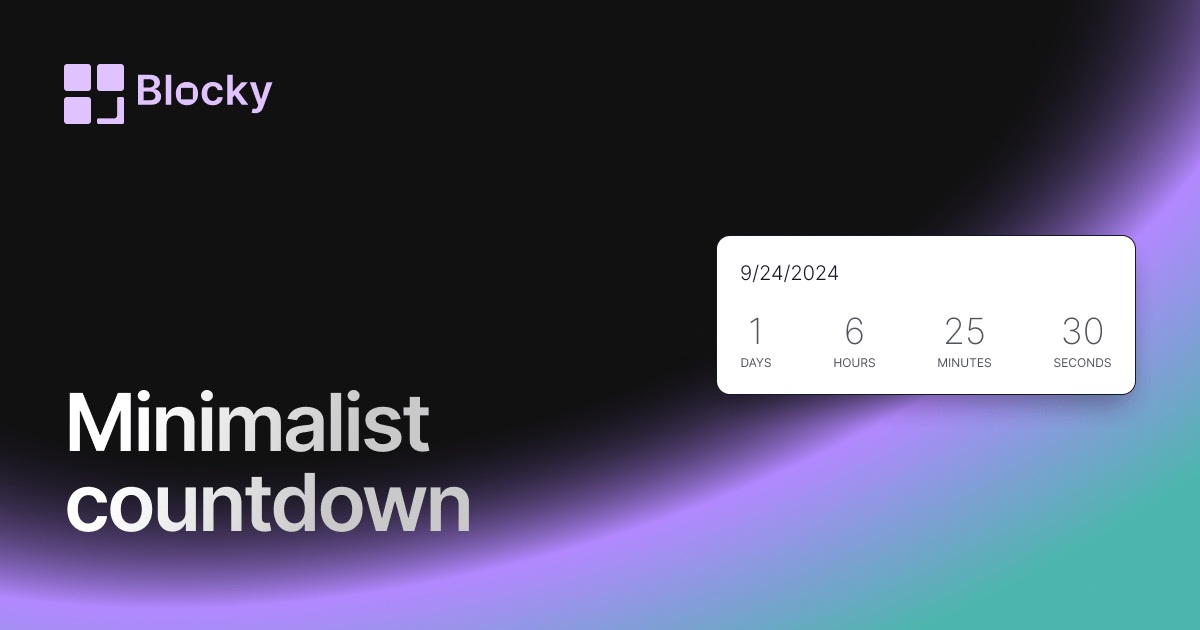
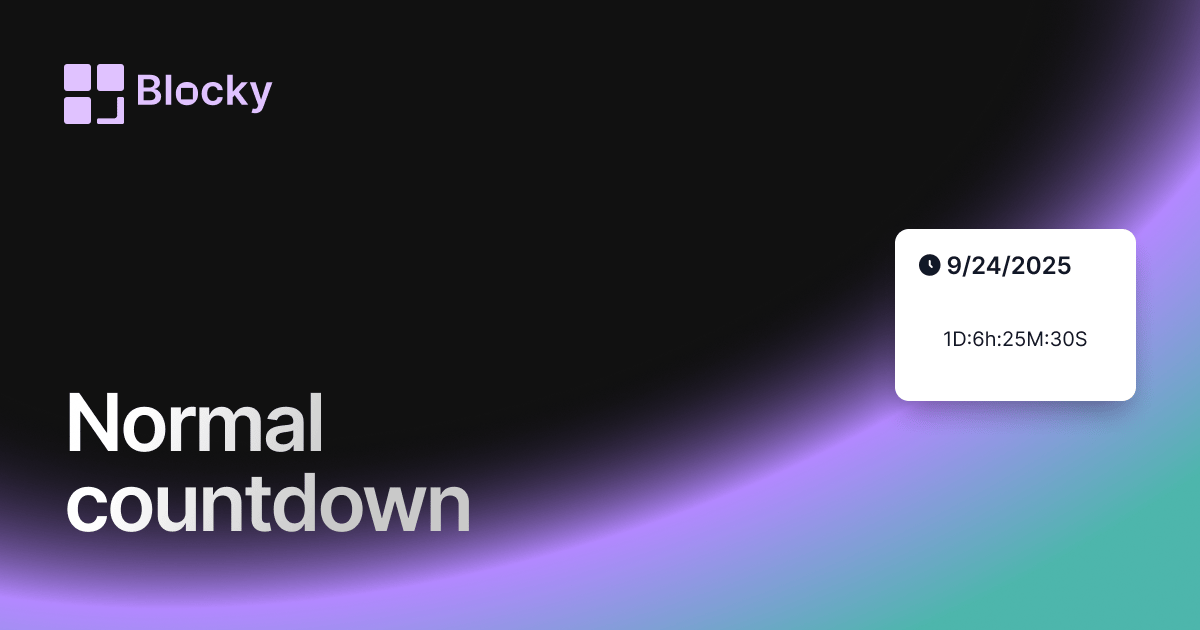
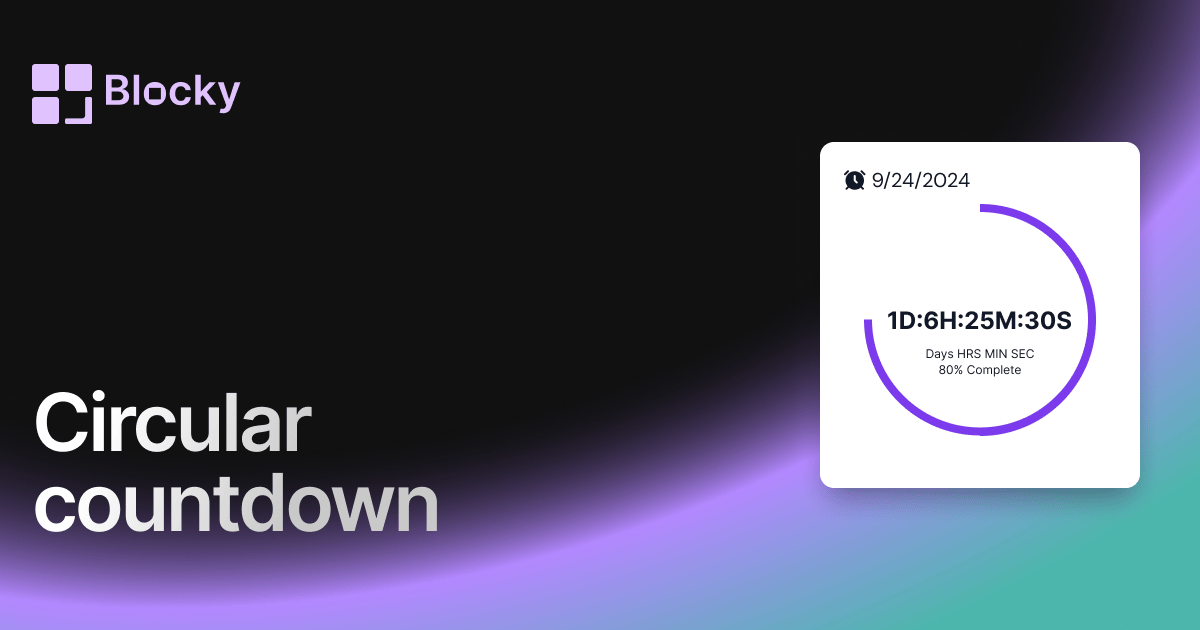
Blocky includes Normal, Minimalist, Circular, Digital, Holiday, and Space countdown variants. Use the linked variant pages to compare visual treatments and choose a timer that fits your Notion page.

Benefits of a Notion countdown timer

A countdown turns an important date into a visible reminder. It helps Notion dashboards communicate urgency, motivate action, and keep a deadline close to the tasks that move it forward.

02Steps

The Blocky setup flow.

Use this sequence to create, preview, publish, and embed the widget inside a Notion page.

  1. 01

    Pick the widget type in Blocky and start from the closest template.

  2. 02

    Connect a Notion database or add the manual values the widget needs.

  3. 03

    Adjust the variant, colors, labels, sizing, and preview state in the editor.

  4. 04

    Copy the Blocky embed URL and paste it into Notion with the /embed block.

04Benefits

Why add countdown timers to Notion?

Blocky keeps the widget beside the notes, projects, and dashboards where the context already lives.

Keep countdown timers visible beside the Notion page where the work is planned.

Use a live preview before publishing so the embed matches the dashboard layout.

Update the Blocky widget once and keep the Notion embed URL stable.

Studio · CustomizeLive preview

Compose · Preview · Embed

Customize a widget, then embed it anywhere in Notion

Shape one of Blocky’s 60+ widgets to your data and layout, preview the result live, then drop the embed link into any Notion page. Sign in to start customizing.

Start customizing