How do I add a dice roller in Notion?

How to add a dice roller in Notion

Learn how to add a dice roller in Notion with Blocky, compare dice variants, preview the editor, and embed a tabletop tool.

01Guide

Create dnd dice roller in Notion with Blocky.

These notes target the common Google question and explain the no-code Blocky flow before you choose a variant.

How to add a dice roller in Notion with Blocky

Use Blocky to add a dice roller in Notion for tabletop sessions, campaign notes, random choices, or playful dashboards. Choose the DND Dice Roller widget, select the dice setup, and preview the roll interface in the editor.

You can customize the visual style, dice count, color treatment, spacing, and display settings. Publish the widget by copying the embed URL into Notion.

Dice roller variants

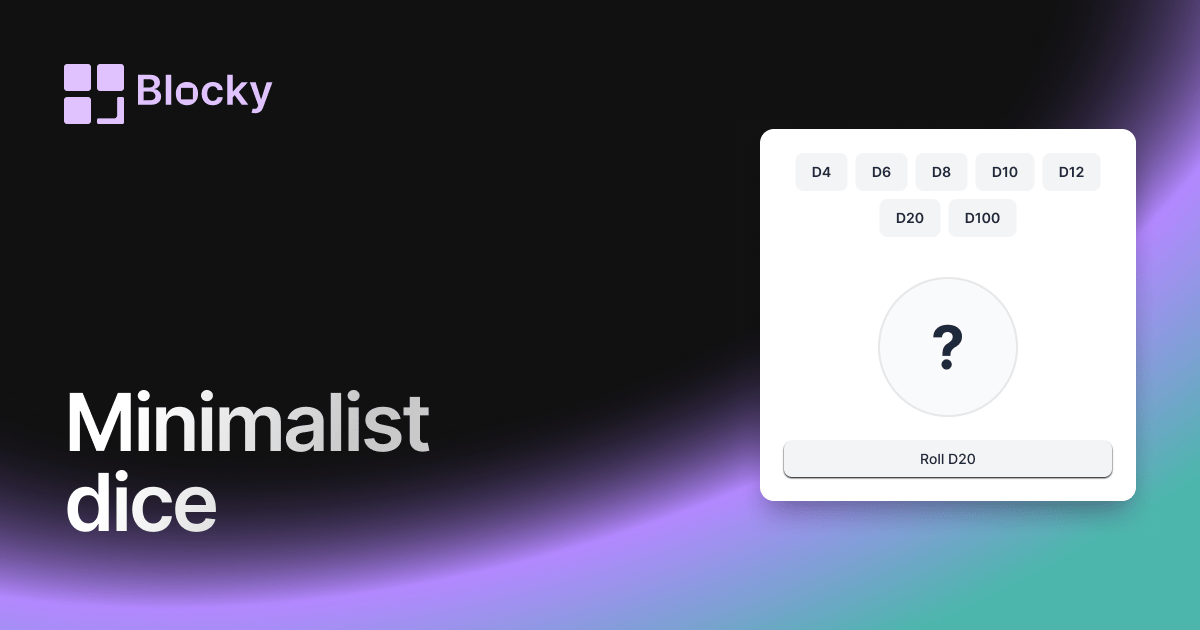
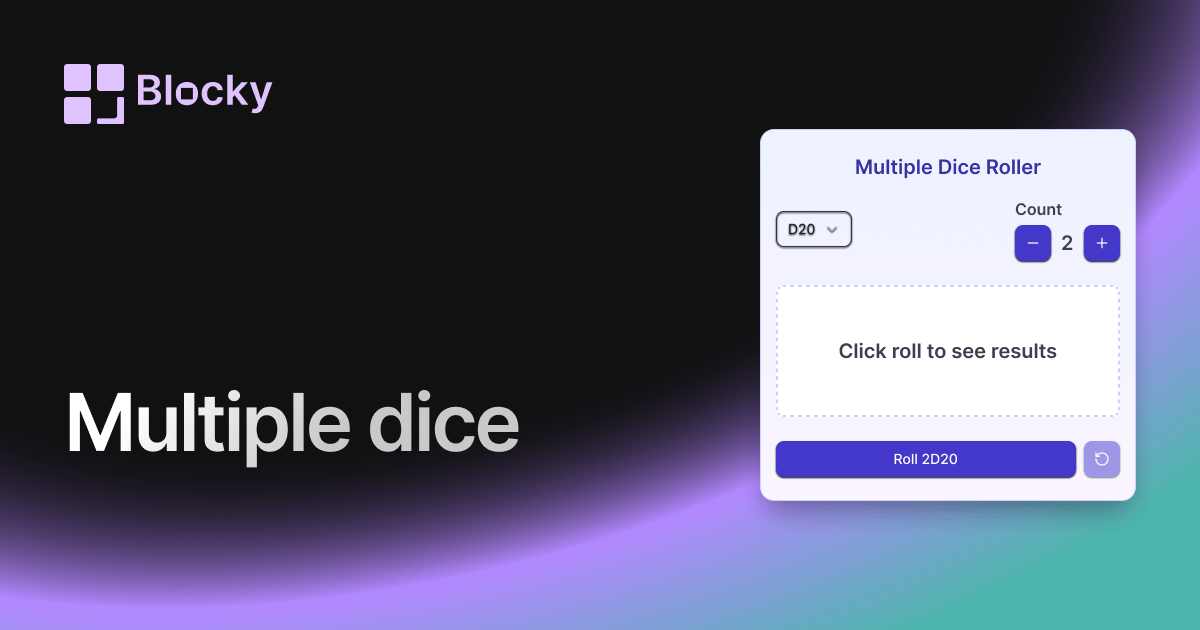
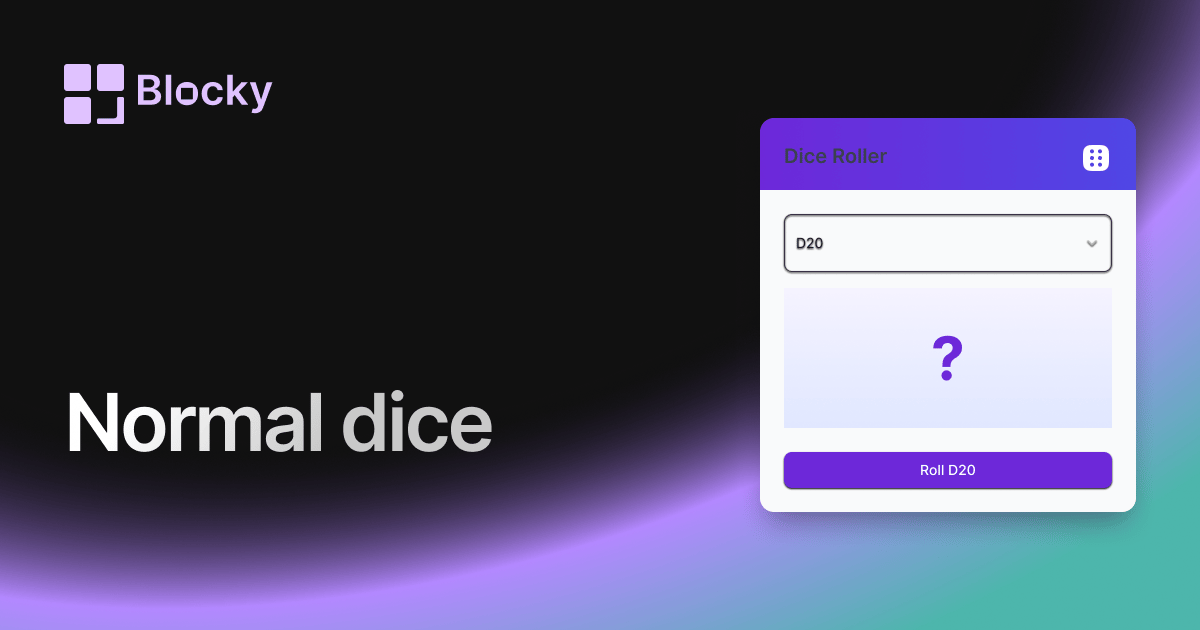
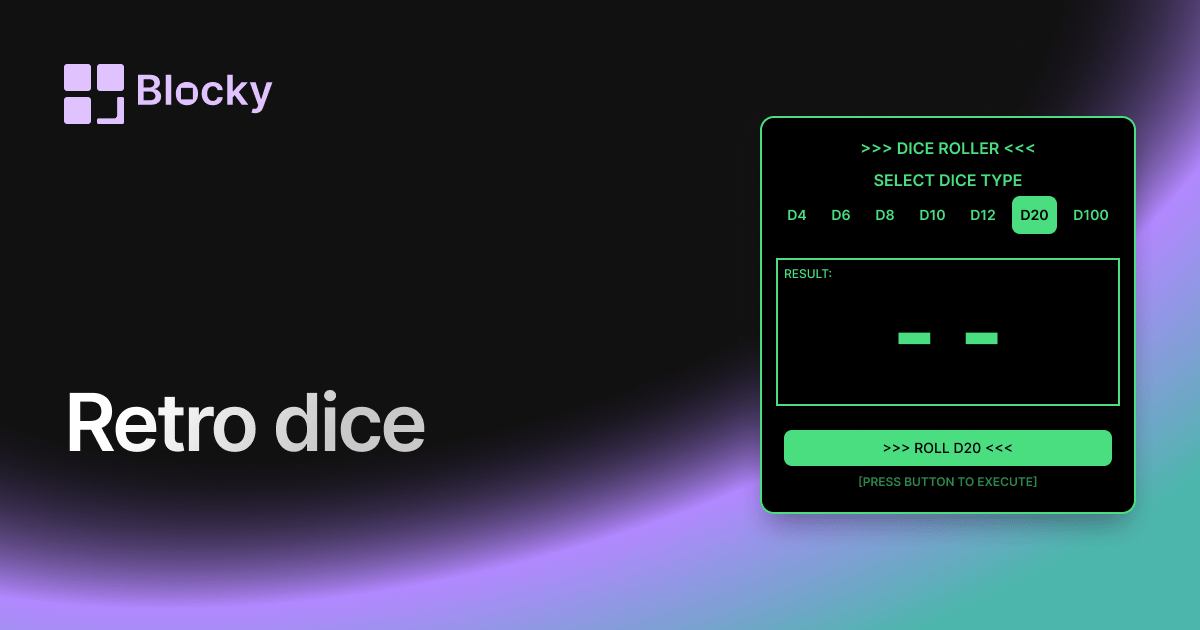
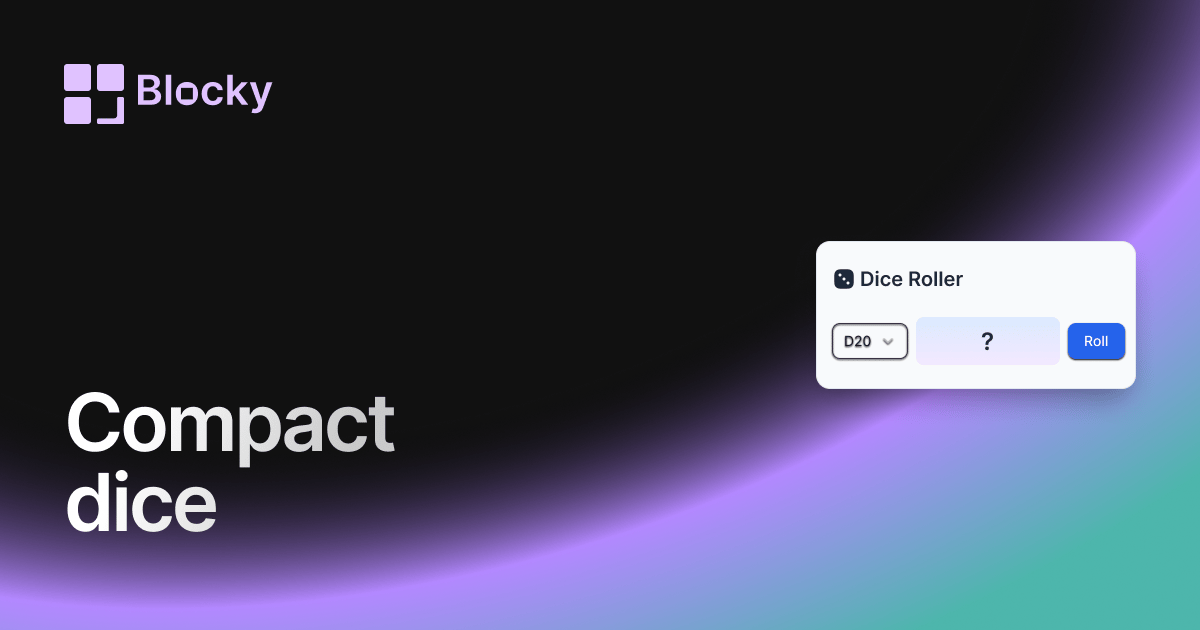
Blocky includes Normal, Minimalist, Retro, Compact, and Multiple Dice variants. Each linked variant page shows a different dice rolling experience, and the full explorer lists the complete type.

Benefits of a Notion dice roller

A dice roller keeps game mechanics and randomness beside campaign notes, tables, character sheets, or brainstorming pages. It reduces app switching and keeps the interaction inside Notion.

02Steps

The Blocky setup flow.

Use this sequence to create, preview, publish, and embed the widget inside a Notion page.

  1. 01

    Pick the widget type in Blocky and start from the closest template.

  2. 02

    Connect a Notion database or add the manual values the widget needs.

  3. 03

    Adjust the variant, colors, labels, sizing, and preview state in the editor.

  4. 04

    Copy the Blocky embed URL and paste it into Notion with the /embed block.

04Benefits

Why add dnd dice roller to Notion?

Blocky keeps the widget beside the notes, projects, and dashboards where the context already lives.

Keep dnd dice roller visible beside the Notion page where the work is planned.

Use a live preview before publishing so the embed matches the dashboard layout.

Update the Blocky widget once and keep the Notion embed URL stable.

Studio · CustomizeLive preview

Compose · Preview · Embed

Customize a widget, then embed it anywhere in Notion

Shape one of Blocky’s 60+ widgets to your data and layout, preview the result live, then drop the embed link into any Notion page. Sign in to start customizing.

Start customizing